
Updated: .
Basic accessibility should not require switching on a special mode. People should be able to find information, understand it, and take action in the regular interface. Personal settings help when they extend that ability rather than conceal its absence.
Discussing accessibility with specialists who test and certify government websites led me to a simple conclusion: we need to assess whether people can actually use the service. A person should be able to read the terms, complete a form, and get a result without first having to find a special version of the website.
Easy for me does not necessarily mean accessible
Imagine booking a consultation. Large text, distinctive colors, a clear button. But choosing a date requires dragging, an error is indicated only by a red border, and confirmation appears for two seconds without being announced. A visually tidy screen prevents some people from completing the booking.
Accessibility extends beyond vision. It includes operating controls without precise motor movements, accessing information without sound, understanding instructions, reading at your own pace, and using assistive technology. Situational limitations make many of these decisions useful to a wider audience. That is no reason to erase the needs of people with disabilities behind a general claim of being “easy for everyone.”
Three layers that cannot substitute for one another
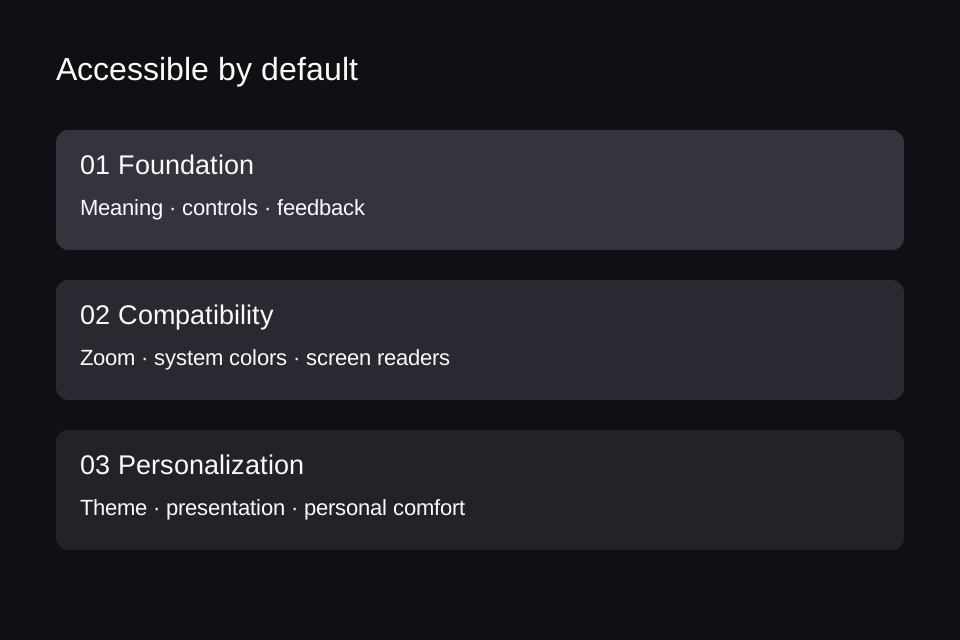
Foundation: content, semantics, controls, and feedback are accessible in the main interface. Compatibility: the site continues to work with magnification, system color changes, and screen readers. Personalization: people choose a comfortable presentation, such as a theme or text density.
This is our working design model, not a new WCAG classification. The point is simple: a theme switcher does not fix a button that cannot be operated with a keyboard. Equally, a correctly implemented button does not eliminate the value of personal settings.
What is wrong with a “low vision version”?
The problem begins when a separate mode becomes an excuse for an inaccessible main interface. People first need to find the switch, understand its purpose, and activate it. If it is hidden in an inaccessible menu, the solution is out of reach before the task even starts.
However, the presence of settings tells us nothing conclusive about a team's competence. We cannot assume that everyone with a color vision deficiency has configured system filters, or that nobody needs a site's text enlargement controls. Needs, devices, and skills vary. Our design position is to fix the basic interface first, then offer useful personalization.
Nor should this position be presented as a literal WCAG ban on alternative presentations. The standard sets conditions for conforming alternate versions. That is a more demanding concept than a theme button: equivalent information, functionality, and an accessible way to reach the alternative must be verified.
Four myths that get in the way of improving a product
- “Add a widget and we get accessibility.” First, check what has changed in actual tasks. A color filter alone does not explain a form error or give a button a meaningful name.
- “Good contrast is all we need.” A readable label does not rescue a control that works only with a mouse.
- “More ARIA is always better.” An incorrect role can obscure an element's original meaning. Correct HTML with necessary additions is preferable to adding as many attributes as possible.
- “The automated test is green, so we are done.” Automation checks some conditions. It does not replace a person completing a task.
The last two limitations are addressed directly in ARIA Authoring Practices and WAI's guidance on evaluation tools.
Is WCAG really an official standard?
WCAG is published by W3C. W3C Recommendation status identifies a mature specification recommended as a web standard. WCAG 2.2 has also been adopted as ISO/IEC 40500:2025, which W3C announced on October 21, 2025. It is not merely advice from an individual blogger or screen reader vendor.
However, a standard and a law are different things. The applicable version, conformance level, organizations covered, and deadlines depend on the jurisdiction, contract, or procurement procedure. There is no universal rule that “every website legally needs WCAG 2.2 AA.”
For new development, WCAG 2.2 AA is a reasonable engineering target unless the project specifies otherwise. AA includes applicable A and AA criteria; it is neither an average score nor a percentage of passing checks. Conformance also does not mean that absolutely every individual need has been met.
Turn a principle into a practical decision
For each key action, record four things: what the person wants to do; which barrier gets in the way; what you will change; and how you will verify the result. For example: “Choose a date → the calendar works only with a mouse → add keyboard operation and clear date entry → complete the booking without a mouse and check that the selected day is announced.”
This produces a testable requirement rather than a decorative promise. Start with signing in, searching, submitting a request, paying, canceling, and recovering from errors. Success is the ability to complete the journey independently, not the number of special buttons.
The Accessible UI skill for Codex and Claude Code
Based on this research, we created open skills for Codex and Claude Code to help analyze and improve websites and applications. Accessible UI guides checks of semantics, keyboard interaction, focus, forms, and contrast; Adaptive Interfaces helps adapt layouts to window sizes, text scaling, the keyboard, and foldable devices. The agent examines the actual project, proposes evidence-based improvements, and verifies the agreed changes. These skills do not replace testing with users and assistive technologies.
If you build interfaces with AI assistants, get the Accessible UI skill on GitHub. It brings together the practical rules from this series: semantics, keyboard interaction, focus, forms, contrast, and verification. The instructions are in English.
Install from GitHub: in Codex, give this command to the built-in skill installer:
$skill-installer install https://github.com/wladislaw353/agent-skills/tree/main/skills/accessible-uiIn Claude Code, the collection can be installed as a plugin from the same repository. The Claude Code instructions on GitHub cover installation, updates, and invocation of each skill. A plugin skill uses a name such as /agent-skills:accessible-ui; an individually installed skill uses /accessible-ui.
For manual installation, clone the GitHub repository. Place the contents of skills/accessible-ui in the directory for your tool:
- Codex:
~/.agents/skills/accessible-ui/ - Claude Code:
~/.claude/skills/accessible-ui/
The SKILL.md file should sit directly inside accessible-ui. Start a new session after installation. To invoke the skill explicitly, use $accessible-ui in Codex CLI or the IDE extension, or /accessible-ui in Claude Code.
Sources and the status of standards checked on November 5, 2026.